
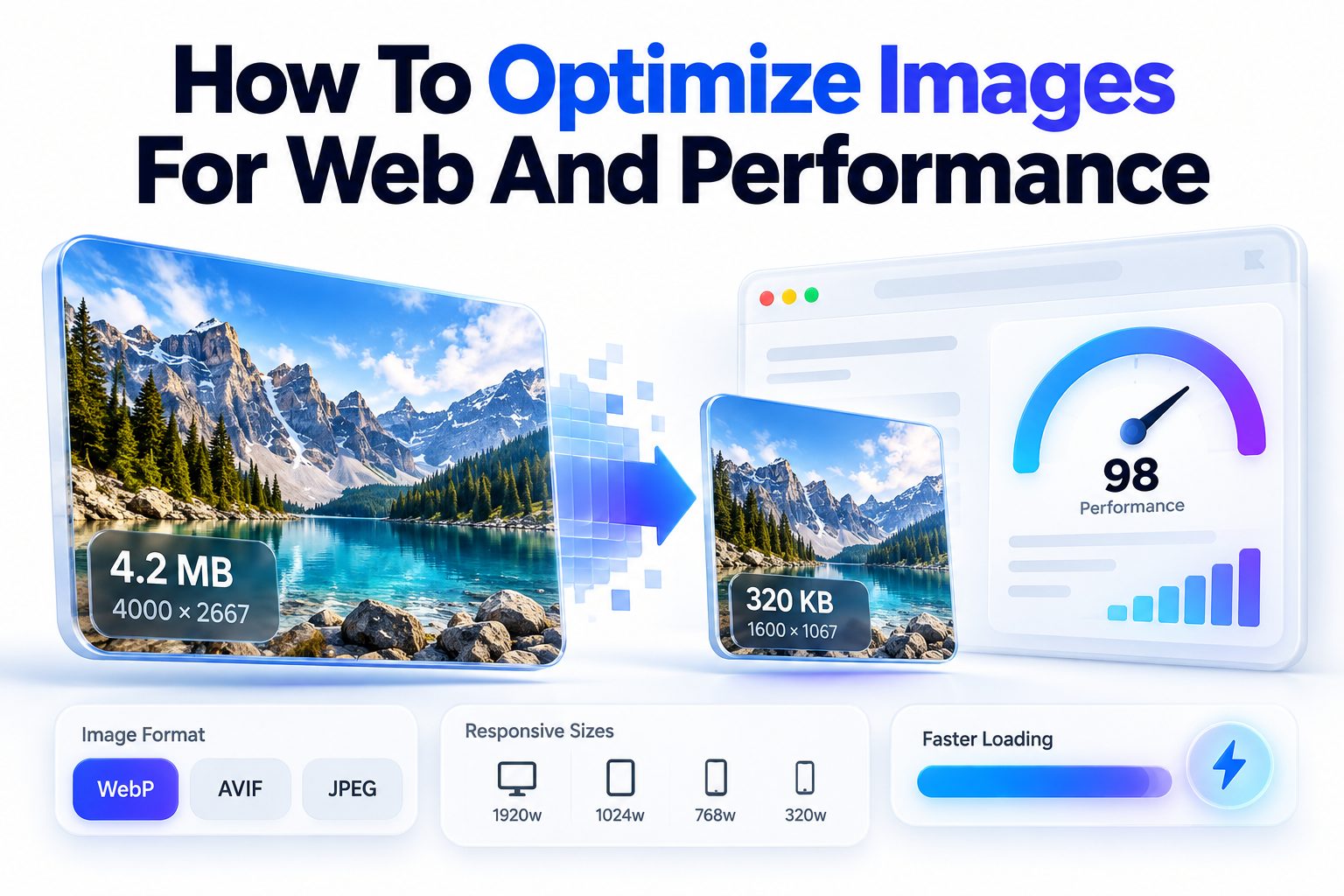
Slow pages lose visitors fast, and images are usually the main reason. If you want to learn how to optimize images for web and performance, you are in the right place. Most pages carry more image weight than text, code, and fonts combined, so even small savings per file add up quickly.
In this article, you will learn how to pick the right format, resize correctly, compress without visible damage, serve responsive versions, and use lazy loading the right way. I will also cover file names, alt text, delivery through a CDN, and simple ways to test your results. You can apply these steps to WordPress, Shopify, or a hand-coded site and see faster load times, better Core Web Vitals scores, and a smoother experience for mobile users.
Why Image Weight Slows Down Websites
Images often account for half or more of a page’s total transfer size. A single uncompressed hero photo from a camera can be 5MB or larger, while the same image properly exported might be under 200KB with no obvious difference on screen. Multiply that across a homepage, and load time jumps from one second to six.
Speed also shapes how people judge trust. Visitors tend to leave when a product page stalls, especially on mobile data. Search engines measure similar behavior through loading metrics, so heavy media can hurt rankings and conversions at the same time. Fixing images is usually the fastest performance win available.
Impact on Core Web Vitals and User Experience
Google focuses on Largest Contentful Paint, Interaction to Next Paint, and Cumulative Layout Shift. Images directly affect all three. A large hero image often becomes the Largest Contentful Paint element, slow decoding can delay interaction, and images without dimensions push text around as they load.
Setting width and height attributes, preloading the hero image, and keeping file sizes small helps pages feel stable and responsive. Users notice when pictures appear quickly and the layout stays still while scrolling. [Internal Link: Improve Core Web Vitals for WordPress]
Choosing the Right Format for Web Images
JPEG remains useful for photos and complex images with many colors. It supports lossy compression, so you can shrink files a lot with careful settings. Use it when you need broad compatibility and do not need transparency.
PNG works better for logos, icons, screenshots, and graphics with sharp lines or text. It preserves crisp edges and supports transparency, but file sizes get large for photos. For most photographic content, PNG is not the efficient choice.
Modern Options Like WebP and AVIF
WebP gives about 25 to 35 percent smaller files than JPEG at similar visual quality. It supports both lossy and lossless compression plus transparency and animation. Browser support is now excellent, which makes it a safe default for many sites.
AVIF goes further, often 40 to 50 percent smaller than JPEG with good detail retention. It handles wide color and HDR well. Encoding is slower and very old browsers may need a fallback, but for hero images and portfolios the savings are worth it. Serve AVIF with WebP or JPEG fallback using the picture element.
Key benefits of switching to modern formats:
- Smaller file sizes at the same visual quality, which lowers Largest Contentful Paint times
- Built-in support for transparency and animation without needing multiple formats
- Better detail preservation in gradients, shadows, and low-light photos
- Lower bandwidth costs and faster browsing for mobile users
- Easier path to passing PageSpeed Insights image audits
Resizing and Scaling Images Before Upload
Uploading a 6000 pixel photo and letting CSS shrink it to 800 pixels wastes bandwidth. The browser still downloads the full file. Always resize to the largest size that will actually display, plus a little extra for high-density screens.
Check your theme or layout first. A blog content column might be 768 pixels wide, a full-width hero might need 1600 to 2000 pixels, and a thumbnail might only need 300 pixels. Create exports for each use instead of reusing one huge original everywhere.
Handling Retina and High Density Displays
Retina screens pack more pixels into the same physical space. A 400 pixel wide image can look soft on a 2x display unless you provide around 800 pixels of data. You do not need 3x for everything, since the file cost rises fast.
A practical rule is to serve 1x and 2x versions through srcset. Keep the 2x version well compressed, because high-density detail is less noticeable on a phone screen. For icons and logos, consider SVG, which stays sharp at any size with a tiny file.
Compressing Images Without Visible Quality Loss
Compression removes data the eye is less likely to notice. Lossy compression gives much smaller files and is ideal for photos. Lossless compression keeps every pixel perfect and suits graphics where exact edges matter, though savings are smaller.
The goal is to find the point where file size drops sharply but visual change stays minimal. For JPEG, that is often quality 60 to 75. For WebP, quality 60 to 70 looks clean for most photos. Export, zoom to 100 percent, and compare skin tones, text edges, and smooth skies.
A Reliable Compression Workflow
Start with the highest quality original, then resize, then compress, then convert to WebP or AVIF. Doing compression before resizing can introduce artifacts that get magnified. Keep originals archived separately so you can re-export later.
Use trusted tools such as Squoosh, TinyPNG, ImageOptim, ShortPixel, or your build tool with Sharp and imagemin. Many content management systems can compress on upload, but check the output. Automatic settings are sometimes too aggressive for product photos or too gentle for thumbnails.
Follow these numbered steps for consistent results:
1. Identify the display size by inspecting your layout at desktop and mobile widths.
2. Resize the original to that width, creating separate 1x and 2x versions if needed.
3. Export as WebP at quality 65, then compare with the original at full zoom.
4. If you see banding or blur, raise quality by 5 points or try AVIF.
5. For graphics with text, test PNG and SVG before using lossy formats.
6. Rename the final file descriptively and upload, then verify size and appearance on a real phone.
Serving Responsive Images for Every Screen
One fixed image cannot serve a phone and a wide desktop monitor efficiently. Responsive images let the browser pick the best file based on viewport width and pixel density. This avoids sending a 2000 pixel hero to a 360 pixel phone.
Use srcset with width descriptors plus a sizes attribute that matches your CSS layout. For art direction, where mobile needs a tighter crop than desktop, use the picture element with different crops per breakpoint. Test by resizing your browser and checking which file loads in developer tools.
Using Srcset and Sizes Correctly
A common setup includes three to four widths, for example 480, 800, 1200, and 1800 pixels. More versions help only if sizes reflect reality. If your sizes attribute says the image is full width but CSS limits it to half, browsers may download a file that is too large.
Keep the markup simple and aligned with CSS. For a blog image that is 100 percent width on mobile and 700 pixels on desktop, sizes might be listed as mobile first with a desktop fallback. Avoid upscaling small images, since that increases blur without adding detail.
Implementing Lazy Loading and Smart Delivery
Lazy loading defers offscreen images until the user scrolls near them. This speeds up the initial load and saves data for visitors who never reach the bottom. Modern browsers support loading equals lazy natively, so you often do not need a JavaScript library.
Apply lazy loading to below-the-fold images only. Your hero, logo, and first content image should load immediately. For the hero, consider fetchpriority equals high and a preload link to help the browser find it sooner. Incorrectly lazy loading the top image delays your most important paint.
Delivery Through a CDN and Proper Caching
A content delivery network stores copies of your images near visitors and can resize, convert, and compress on the fly. Services like Cloudflare, Cloudinary, and Imgix can serve WebP or AVIF automatically based on browser support. This is helpful when you have thousands of existing files.
Set long cache headers for versioned image URLs so repeat visits load from cache. When you update an image, change the file name or add a version string instead of overwriting the same URL. Also enable HTTP/2 or HTTP/3 and compression on your server to reduce connection overhead. [Internal Link: Image CDN Setup Guide]
Practical delivery checklist:
- Mark only below-the-fold images with loading equals lazy and decoding equals async
- Preload the hero image and set explicit width and height to avoid layout shift
- Serve images from a CDN with automatic format selection when possible
- Use long cache lifetimes with versioned filenames for repeat views
- Keep critical CSS inline so image placeholders render before files arrive
File Names, Alt Text, and Image SEO Basics
Descriptive file names help you stay organized and give search engines context. Use lowercase words separated by hyphens, such as handmade-ceramic-mug-white-background.jpg. Avoid IMG_4821.jpg or screenshot-final-v2.png.
Alt text describes the image for screen readers and appears if the file fails to load. Write a short, specific description with relevant context, not a keyword list. For a product photo, mention color, material, and use. Leave decorative images with empty alt so assistive technology skips them.
Structured Data and Captions Where They Help
Captions are useful when the image needs explanation, such as charts, before-and-after photos, or complex diagrams. Keep them brief and place them directly under the image. Title attributes are generally unnecessary and can create noise.
For recipes, products, and articles, structured data can help search engines associate images with the right entity. Include a high-quality representative image in your markup and make sure it is crawlable, not blocked by robots rules or lazy load scripts that hide the URL from the initial HTML.
Common Mistakes That Undo Your Work
Many sites compress once but then install a slider or page builder that uploads duplicate large versions. Others forget to set dimensions, so text jumps when photos load. Another frequent issue is using PNG for full-screen photos, which can triple page weight for no visual gain.
Watch for JavaScript lazy loaders that conflict with native loading, causing images to load twice or never appear in crawlers. Also avoid hotlinking images from other domains without permission, since you lose control over sizing, caching, and availability. Audit new plugins and themes after every major update.
Testing and Measuring Image Performance
Start with PageSpeed Insights or Lighthouse to see image-specific suggestions like properly size images, efficiently encode images, and serve images in next-gen formats. WebPageTest shows filmstrip views and bytes per image, which makes it easy to spot the heaviest files.
Check real devices, not just desktop lab tests. Use Chrome DevTools network panel with mobile throttling, filter by Img, and look at transferred size and time. Compare before and after your changes on the same template and connection speed to confirm real improvement.
Setting a Simple Ongoing Routine
Image work is not a one-time fix because new posts, products, and banners keep coming. Create a short standard: maximum widths per template, target file sizes, required formats, and naming rules. Share it with writers, designers, and anyone who uploads media.
Schedule a monthly scan with Screaming Frog, Ahrefs Site Audit, or your CMS media report to find oversized uploads. Re-export offenders, update srcset where missing, and remove unused media from the library. Small steady fixes prevent the slow buildup that hurts speed over time.
Conclusion
Start with sizing, then format, then compression, then delivery. Resize to real display widths, choose WebP or AVIF for photos and SVG or PNG for crisp graphics, compress carefully, add responsive versions, lazy load only what is below the fold, and test with real mobile conditions. This sequence solves most speed problems without changing your design.
If you follow this process consistently, learning how to optimize images for web and performance becomes a repeatable habit rather than a technical chore, and your pages will stay fast as your image library grows.
Frequently Asked Questions
Best Image Format for Fast Websites?
Use WebP as a default for photos and graphics because it balances quality and size. Choose AVIF for even smaller hero images when your workflow supports it, and keep JPEG as fallback for older systems.
Ideal File Size for Web Images?
Aim for under 200KB for large hero images and under 100KB for standard content images. Thumbnails should often be under 50KB. These are targets, not strict limits, so prioritize visual clarity.
Correct Way to Resize Images for Upload?
Match the file width to the layout width, with a 2x version for sharp displays. A 800 pixel column needs an 800 pixel file and optionally a 1600 pixel version. Never upload full camera resolution directly.
When to Use Lazy Loading on Images?
Use lazy loading for images below the fold such as galleries, related posts, and footers. Do not lazy load the hero or first visible image, since that delays the main paint and harms loading scores.
How to Check If Images Slow Down a Site?
Run PageSpeed Insights and open the diagnostics for image size and encoding issues. Then use WebPageTest or DevTools network panel to find the largest files and confirm improvements after compression.